
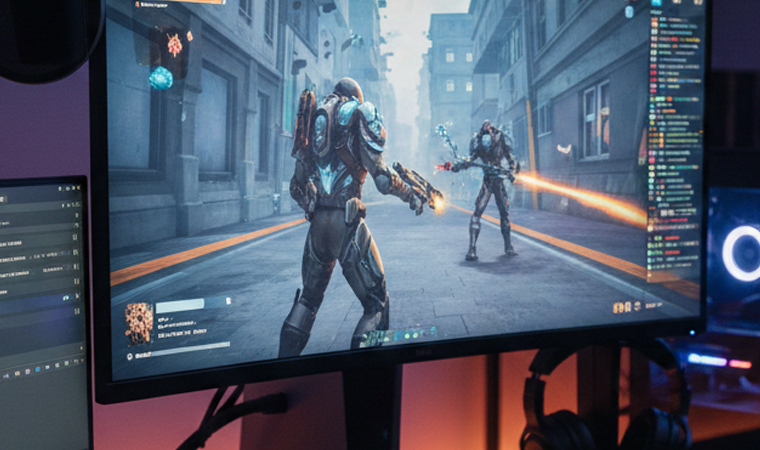
Why Recording Gameplay Matters in 2026
If you’ve ever pulled off an insane clutch play and had absolutely no proof it happened, you already understand why learning to record gameplay is essential. We live in an era where gaming isn’t just a pastime — it’s a culture, a career, and for millions of people, a full-time identity. According to Statista Gaming Insights (2025), over 65% of gamers now record or share gameplay clips monthly. Insights That number alone tells you everything you need to know: if you’re not recording, you’re leaving content, community engagement, and even income on the table.
Think of your gameplay recordings the same way an athlete thinks about game tape. You watch it back, you study it, you improve. Whether you’re a competitive FPS player trying to climb ranked ladders, a casual Minecraft builder showing off a stunning new build, or an aspiring content creator trying to grow a YouTube channel, capturing your screen in high quality is the foundation of it all. The gaming content space has exploded across YouTube, TikTok, and Twitch, and the barrier to entry has never been lower — provided you know the right tools and techniques to use.
What separates a mediocre gameplay video from one that racks up thousands of views? It usually comes down to video clarity, frame rate smoothness, audio quality, and the polish of the final edit. The great news is that in 2026, even free game recording software can deliver stunning results if you know how to configure it properly. This guide is going to walk you through everything — from picking the right software to nailing your settings, and finally turning raw footage into polished content ready for the world to see.
What Makes a Great Gameplay Recording Setup
Before you hit that record button, you need to understand what actually goes into producing smooth, high-quality footage. Recording gameplay isn’t just about clicking a button and hoping for the best. It’s a system — hardware, software, and settings all working together like a well-oiled machine. Skipping any one of those layers is like trying to run a high-end game on a potato PC: technically possible, but painfully frustrating.
Hardware Requirements
Your PC specs are the ceiling for what your recordings can look like. No amount of software wizardry will save you if your CPU and GPU are struggling to run the game itself, let alone encode video at the same time. As a general rule, you want at least 16GB of RAM, a modern quad-core processor, and a dedicated GPU to handle both gaming and recording simultaneously without dropping frames. Storage is another consideration people frequently overlook — high-quality video files are massive, and running out of disk space mid-session is a nightmare you don’t want to experience. An SSD is strongly recommended for your recording destination since it writes data faster and reduces the risk of dropped frames during encoding.
Your display setup also plays a role. If you’re gaming at 1440p or 4K, your recording software needs to be configured to match (or at least come close), otherwise you’ll notice a visible drop in sharpness when you go back and watch your footage. For most creators, 1080p at 60 frames per second is the sweet spot that balances file size, visual clarity, and upload speed on platforms like YouTube. If your rig can push 1440p60, even better — that extra resolution headroom gives you flexibility when editing and cropping.
Software Requirements
Beyond your hardware, the game recording software you choose will define your workflow. The best recording tools in 2026 are built around hardware acceleration, meaning they offload the video encoding work to your GPU instead of your CPU. Tools with hardware-accelerated encoding leverage your GPU instead of your CPU to maintain stable FPS and reduce lag during recording. Insights Technologies like NVIDIA NVENC, AMD AMF, and Intel Quick Sync are the names to know here — they allow you to encode video at high quality while barely touching your game performance. When you’re shopping for or configuring your recording software, make sure hardware acceleration is enabled and set to use your GPU encoder.
Best Game Recording Software in 2026
The market is absolutely loaded with options, and that can feel overwhelming. The key is matching the tool to your actual needs rather than chasing the most feature-packed option available. Are you a competitive gamer who just wants automatic clip saving? A content creator who needs detailed control over every setting? A beginner who wants something simple and free? There’s a perfect tool for each of these scenarios, and below we break down the heavyweights.
OBS Studio – The Free Powerhouse
When people talk about game recording software, OBS Studio is almost always the first name that comes up — and for good reason. OBS Studio is a free, open-source game recorder that offers cross-platform compatibility on Mac, Windows, and Linux PCs. Wondershare It is the undisputed champion of flexibility, giving you granular control over bitrate, resolution, frame rate, encoder type, audio mixing, and scene transitions. For streamers and creators who want to build professional setups without spending a dime, OBS is practically unmatched. You can run multiple audio tracks, add overlays, plug in your webcam, and configure hotkeys for every action imaginable.
That said, OBS does have a learning curve that can feel steep for absolute beginners. OBS Studio is a powerful program that doesn’t make too much of an impact on your PC’s performance, but it is not a tool that just starts up and works — it requires time to understand how it works and patience to learn how to troubleshoot when things don’t work as expected. EaseUS If you’re willing to invest a couple of hours into learning the software, the payoff is enormous. Once configured correctly, OBS can produce broadcast-quality recordings that rival what you’d get from expensive paid tools.
NVIDIA ShadowPlay – Best for NVIDIA Users
If your PC is running an NVIDIA graphics card, you have access to one of the most seamless gameplay recording solutions available: NVIDIA ShadowPlay, built into the GeForce Experience software. ShadowPlay uses NVENC hardware encoding so aggressively that most users report virtually zero performance impact while recording at 1080p60 or even 1440p. The interface is clean, the setup takes minutes, and one of its standout features is the Instant Replay mode, which keeps a rolling buffer of your last few minutes of gameplay so you can save a clip retroactively after something incredible happens. Nvidia GeForce Experience supports recording and streaming popular games like Call of Duty and many others with AI-powered performance support for 100+ games. Wondershare
Bandicam – Best for Windows Gamers
Bandicam has earned a loyal following among Windows gamers for its lightweight footprint and laser-focused feature set. Bandicam is a lightweight screen recorder software for Windows that can capture anything on your PC screen as high-quality video, with the ability to capture games using DirectX, OpenGL, and Vulkan graphics technologies, a high compression ratio without compromising video quality, and the ability to record 4K Ultra HD videos at customizable frame rates. ScreenApp The compression technology Bandicam uses is particularly impressive — it keeps file sizes manageable without the blurring and blocking artifacts you see in poorly configured recordings. The full version, offering unlimited recording time and no watermark, is priced at $39.95 for a single license. ScreenApp
Insights Capture – Best for Automatic Highlights
Insights Capture is a newer player that has quickly become a favorite for competitive gamers who don’t want to babysit their recording software. Unlike generic screen recorders for gaming, Insights Capture is optimized for detecting kills, wins, and epic plays automatically, saving you time and effort. Insights It runs silently in the background and uses game event detection to automatically bookmark the moments that matter, so instead of scrolling through hours of footage, you get a curated collection of your best clips. Version 3 includes a new architecture with approximately 40% less FPS impact and a highlight mode with automatic montage creation. Insights For anyone who plays competitive titles like Valorant or League of Legends, this kind of intelligent recording is a massive time-saver.
Action! Game Recorder – Best Performance
Action! has carved out a niche as the go-to option for users who are obsessed with efficiency. Action! is the best game recording software in terms of megabytes per frame, computer resources usage, and FPS — no other game recorder can record your gameplay in a smaller file with less CPU and GPU usage, and without any loss in frames. Action! Recorder It also supports slow-motion recording, green screen modes, and live streaming, making it a surprisingly capable all-rounder for a price tag of $29.95.
Comparing Top Game Recording Software
Here’s a quick comparison of the top tools to help you decide which fits your needs best:
| Software | Price | Platform | Best For | Key Feature |
|---|---|---|---|---|
| OBS Studio | Free | Win/Mac/Linux | Streamers & creators | Full customization |
| NVIDIA ShadowPlay | Free | Windows | NVIDIA GPU users | Zero-impact recording |
| Bandicam | $39.95 | Windows | General gamers | High compression 4K |
| Insights Capture | Free/Paid | Windows | Competitive gamers | Auto highlight detection |
| Action! | $29.95 | Windows | Performance-focused users | Smallest file sizes |
| Camtasia | ~$299/yr | Win/Mac | Educators & tutorial creators | Built-in video editor |
How to Set Up Your Recording Software Step by Step
Setting up your capture gameplay workflow doesn’t have to be complicated, but there is a right order to do things. Jumping straight into recording without configuring your software first is like baking a cake without preheating the oven — technically you’ll get something, but it won’t be what you wanted.
Choosing Your Resolution and Frame Rate
The first decision you’ll make is your output resolution and frame rate. As mentioned earlier, 1080p at 60 FPS is the industry standard for gaming content in 2026 and delivers excellent results on YouTube, TikTok, and Twitch. However, if your GPU supports 1440p recording without impacting your in-game performance, that extra resolution gives your videos a noticeably sharper, more professional look. For frame rate, never go below 60 FPS for fast-paced games — anything lower will make your footage look choppy and amateurish, especially in shooters or racing games where motion blur is already a factor. Set your recording resolution to match your in-game resolution to avoid any scaling artifacts that soften the image.
Configuring Audio Settings
Audio is the most underrated aspect of gameplay recording, and it’s also where a lot of creators silently lose viewers without realizing it. Poor microphone audio, game audio that’s too loud, or a background hum from your PC fans — any of these issues will make your content feel unprofessional regardless of how good the visuals look. In OBS, you can set up separate audio tracks for your game audio, microphone, and system sounds, which gives you total flexibility in post-production to balance the mix. For your microphone, aim for levels that sit around -12 to -6 dB during normal speech, leaving plenty of headroom for when you raise your voice during an intense moment. A noise gate filter in OBS can automatically mute your mic when you’re not speaking, which dramatically cleans up your recordings.
Setting Up Webcam Overlay
Adding a face camera, or “facecam,” to your gameplay recordings is a powerful way to build a personal connection with your audience. Research consistently shows that videos with visible facecams tend to perform better in terms of watch time and subscriber conversion, because viewers feel like they’re watching a real person rather than just a screen. The ideal facecam placement for most content is the bottom-left or bottom-right corner of the frame, sized at roughly 20–25% of the total screen width. Make sure your lighting is flattering — a simple ring light or key light placed slightly above and to the side of your face will make a world of difference compared to the default glow of your monitor. In OBS, adding a webcam is as simple as creating a new “Video Capture Device” source in your scene.
Tips to Capture Gameplay Like a Pro
Knowing the software is half the battle. The other half is about discipline, preparation, and a few smart habits that separate hobbyist recordings from professional-grade content.
Optimize Your PC Before Recording
Before every session, do a quick performance check. Close any background applications you don’t need — browsers with multiple tabs, Discord video calls, software updaters — anything eating into your CPU or RAM budget. Make sure the CPU, GPU, and RAM of your PC live up to the minimum or recommended specs for playing a game, as these are what lead to annoying lagging as you record gameplay. RecordCast You should also make sure your GPU drivers are up to date, since manufacturers regularly push updates that improve encoder efficiency and fix compatibility bugs with popular games. A lean, clean system at the start of your session means smoother recordings and fewer technical headaches.
Use Hardware Acceleration
This tip is so important it deserves its own section. If you are using CPU-based encoding to record your gameplay, you are doing it wrong — full stop. Hardware video acceleration should be enabled in your PC for fast video game capture, and these apps will capture without lag with the latest AMD Radeon and NVIDIA GeForce graphic cards. Software Testing Help In OBS, navigate to Settings > Output > Recording and switch your encoder from x264 (CPU) to NVENC (NVIDIA), AMF (AMD), or Quick Sync (Intel), depending on your hardware. The quality difference at equivalent bitrates is minimal, but the performance difference is enormous — you can typically reclaim 20–40% of your CPU headroom just by making this one change.
Common Mistakes to Avoid When You Record Gameplay
Even experienced creators make recording mistakes that quietly tank the quality of their content. The most common one is recording at a bitrate that’s too low, which causes compression artifacts — that blocky, pixelated look you see in fast-moving scenes like explosions or rapid camera pans. For 1080p60 recordings, aim for a bitrate of at least 15,000–20,000 kbps using h.264 encoding. Going lower than that will visibly degrade your video quality in ways that are immediately obvious to any viewer with a decent monitor.
Another frequent mistake is ignoring storage management until it becomes a crisis. High-quality gameplay footage eats through disk space incredibly quickly — a 30-minute session at 1080p60 with a high bitrate can easily produce 20–30 GB of raw footage. Set up a dedicated recording drive or folder with plenty of headroom, and build a habit of reviewing and trimming footage regularly rather than letting it pile up. Finally, don’t neglect to do a test recording before any important session. A 2-minute test clip that reveals a missing audio source or incorrect resolution setting can save you from the gut-wrenching experience of realizing your 2-hour raid recording has no mic audio.
How to Edit and Share Your Gameplay Footage
Raw recordings almost always need some post-production work before they’re ready for an audience. Even a basic trim to remove the dead time at the beginning and end of a session makes a significant difference in perceived production quality. For beginners, free tools like DaVinci Resolve offer surprisingly powerful editing capabilities at zero cost — you can cut, color grade, add music, and export in high-quality formats without spending a penny. Many modern recording tools now include built-in editors and cloud-sharing integration, so creators can trim, manage, and upload clips within minutes, with no third-party software required. Insights
When it comes to exporting, use h.264 or h.265 encoding for your final export — both are widely supported and compress video efficiently without visible quality loss. For YouTube, export at your native recording resolution with a bitrate of around 12,000–15,000 kbps for 1080p60. For TikTok and Shorts, you’ll want to recut your footage into a vertical 9:16 format and keep clips under 60 seconds for maximum reach. Adding subtitles or text callouts to highlight key moments can dramatically increase engagement, especially for tutorial or educational content where viewers are watching to learn specific techniques.
Conclusion
Learning to record gameplay like a pro is less about having the most expensive equipment and more about understanding the system that produces great results. Pick the right game recording software for your setup and goals, configure your resolution, frame rate, and encoder settings thoughtfully, optimize your PC before each session, and build solid habits around audio quality and storage management. Whether you’re using free tools like OBS Studio or NVIDIA ShadowPlay, or investing in paid options like Bandicam or Action!, the fundamentals covered in this guide give you a solid foundation to capture gameplay that looks sharp, runs smoothly, and is ready to impress an audience. The gaming content world is only getting bigger — now is the perfect time to start producing your piece of it.
FAQs
1. What is the best free game recording software in 2026? OBS Studio remains the top free option thanks to its unlimited features, cross-platform support, and zero-cost access. For users who want something more automated, NVIDIA ShadowPlay (for NVIDIA GPU owners) and Insights Capture are excellent free alternatives that require far less configuration.
2. Will recording gameplay slow down my PC? It can, but only if you’re using CPU-based encoding. Enabling hardware acceleration using NVIDIA NVENC, AMD AMF, or Intel Quick Sync offloads encoding to your GPU and typically reduces performance impact to less than 5% for most modern systems.
3. What resolution and frame rate should I record at? For most creators, 1080p at 60 FPS is the ideal starting point — it’s the standard expectation on YouTube and Twitch and balances file size with visual quality. If your hardware supports it, 1440p60 is a noticeable upgrade in sharpness.
4. How much storage do I need for gameplay recordings? A 30-minute recording at 1080p60 with a 20,000 kbps bitrate will generate roughly 20–30 GB of footage. For regular content creators, a dedicated 1–2 TB SSD for recordings is highly recommended to avoid running out of space mid-session.
5. Do I need a capture card to record gameplay? For PC gaming, no — software solutions like OBS or NVIDIA ShadowPlay record directly from your GPU and don’t require external hardware. Capture cards are primarily needed when recording from consoles like PlayStation or Xbox that don’t have native PC software.
13 Comments
siti88
[50]siti88 Official Login | Trusted Online Casino Malaysia Fast Payout,siti88 provides a secure gateway to the best slot games in Malaysia. Download our app for seamless access and enjoy a reliable gaming experience. Join today! visit: siti88
gelartoto
[2654]Gelartoto: Link Alternatif Resmi | Situs Slot Gacor Deposit Dana,Gelartoto menyediakan link alternatif resmi untuk akses mudah. Nikmati berbagai pilihan judi online deposit dana dan panduan cara main casino online. Daftar sekarang! visit: gelartoto
bustogel
[3266]Bustogel | Login Resmi Link Alternatif Slot Gacor Deposit Pulsa,Bustogel menyediakan link alternatif terbaru untuk akses login resmi. Nikmati berbagai pilihan slot gacor hari ini dan daftar casino deposit pulsa dengan mudah. Gabung sekarang! visit: bustogel
rokubet
[1055]Rokubet | Link Vào Chính Thức & Hướng Dẫn Chơi Casino Online,Rokubet cung cấp link truy cập chính thức, hướng dẫn tải app APK nhanh chóng cùng cách nạp tiền qua Momo tiện lợi. Khám phá thế giới casino đẳng cấp và tham gia ngay. visit: rokubet
kyngscasino
[2122]kyngscasino | Link Vào Chính Thức – Cách Chơi Baccarat Online,kyngscasino cung cấp link truy cập chính thức, hướng dẫn tải app apk nhanh chóng và cách nạp tiền qua Momo tiện lợi. Khám phá ngay thế giới giải trí đẳng cấp tại đây. visit: kyngscasino
idbatikslot
Love the variety of slots available here. It’s rare to find a place as fair as idbatikslot. Keep it up!
vnnohu60
Great vibes and very easy navigation. I love how simple it is to deposit and start playing. Check out vnnohu60 for quality fun.
may888bet
I’ve been playing here for a few weeks now and the payouts are surprisingly fast. Definitely one of the smoother experiences I’ve had lately. Check out may888bet for a great time.
br555uu
The mobile version is just as good as the desktop one. I can play anywhere and anytime without any glitches. br555uu is top notch.
jili188loginregister
Signing up was a breeze and the welcome bonus really helped me get started. Great customer support too. Register now at jili188loginregister for the best deals.
jljl5download
Finally found the official source for the app. The installation was a breeze and the performance is top notch. If you are wondering where to get it, just head over to jljl5download.
jilipark22casino
Such a fantastic atmosphere and the game selection is top notch. It feels like a real casino experience right from my phone. Visit jilipark22casino
paldopanalomaya
The bonuses here are actually legit and easy to claim. I’ve had some great wins this week alone. Definitely visit paldopanalomaya