
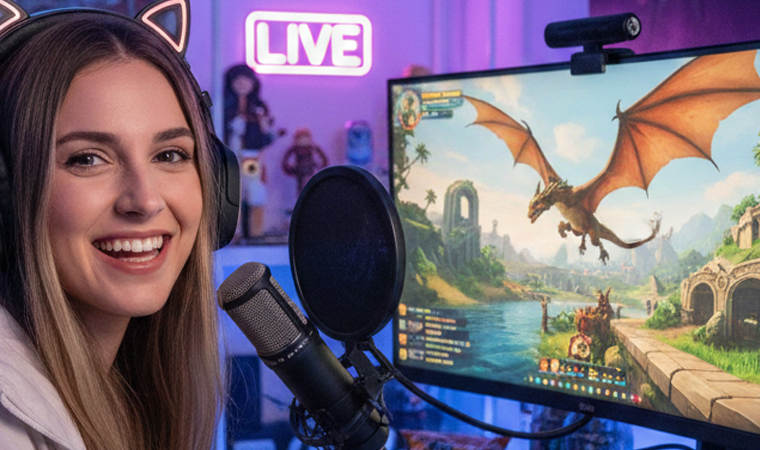
Game streaming has evolved from a niche hobby into a legitimate career path and creative outlet for millions worldwide. Whether you’re dreaming of becoming the next big Twitch sensation, sharing gameplay with friends, or building a community around your favorite games, 2026 offers unprecedented tools and opportunities for streamers at every level.
This comprehensive guide will take you from absolute beginner to confident broadcaster. You’ll learn everything from choosing the right software and setting up your equipment to growing your audience and monetizing your content. Let’s transform you into a streaming pro.
Table of Contents
- Understanding Game Streaming in 2026
- Choosing Your Streaming Platform
- Essential Equipment Guide
- Best Software for Game Streaming
- How to Stream Console Games
- PC Streaming Setup
- Stream Settings and Optimization
- Creating Professional Overlays and Alerts
- Audio Setup and Voice Quality
- Lighting and Camera Setup
- Building Your Brand and Community
- Growing Your Channel
- Monetization Strategies
- Common Mistakes to Avoid
Understanding Game Streaming in 2026
Game streaming has matured into a sophisticated ecosystem where technology, personality, and community intersect. The landscape in 2026 offers both challenges and opportunities for aspiring streamers.
The Current Streaming Landscape
Platform Diversity: While Twitch remains the dominant force with 140+ million monthly viewers, YouTube Gaming, Kick, and TikTok Live have emerged as viable alternatives. Multi-streaming (broadcasting to multiple platforms simultaneously) has become standard practice for many creators.
Technology Accessibility: Cloud-based streaming solutions, AI-powered tools, and improved console integration mean you no longer need a $3,000 PC to start streaming. Quality broadcasts are achievable on modest budgets.
Community Focus: Success in 2026 depends less on flashy production and more on authentic community building. Viewers crave genuine connections with streamers who share their passions.
Content Adaptation: The most successful streamers repurpose their content across platforms. Long-form Twitch streams become YouTube videos, TikTok clips, and Instagram Reels, maximizing discoverability.
What Makes a Successful Stream?
Consistency: Regular streaming schedules build viewer habits and expectations.
Engagement: Interacting with chat, responding to comments, and making viewers feel valued.
Quality: Clear audio, stable video, and professional presentation without technical distractions.
Personality: Authentic self-expression that resonates with your target audience.
Value: Entertainment, education, or community that keeps people coming back.
Streaming Goals: Define Your Purpose
Before diving into equipment and software, clarify what you want from streaming:
Casual Sharing: Playing with friends, low-key broadcasts → Simple setup, native console streaming Community Building: Creating a regular hangout space → Moderate investment, consistent schedule Content Creation: Building a portfolio across platforms → Multi-streaming, content repurposing tools Professional Pursuit: Full-time income potential → High-quality equipment, business approach
Your goals determine your investment level and strategy.
Choosing Your Streaming Platform
Twitch: The Streaming Giant
Strengths:
- Largest live streaming audience
- Robust monetization (subs, bits, ads)
- Strong gaming community culture
- Excellent discovery through categories
- Integrated extensions and alerts
Considerations:
- Highly competitive for new streamers
- Discovery can be challenging without raids/hosts
- Partner program requirements are substantial
- Affiliate achievable (50 followers, 500 minutes streamed)
Best For: Dedicated gamers, community builders, those seeking streaming as primary income source.
2026 Update: Twitch introduced a 100-hour storage cap for highlights and uploads in April 2025. Plan to export and archive important content externally.
YouTube Gaming
Strengths:
- Massive search engine discoverability
- VODs remain permanently (unless deleted)
- Excellent for building long-term audience
- Integrated with YouTube’s broader ecosystem
- Strong monetization options (ads, memberships, Super Chat)
Considerations:
- Live chat can feel less intimate than Twitch
- Primarily known for VOD content, not live
- Algorithm favors established creators initially
Best For: Content creators who edit videos, those wanting permanent archives, streamers targeting broader audiences beyond just gaming.
Kick
Strengths:
- Creator-friendly revenue split (95/5)
- Lower barriers to monetization
- Growing rapidly in 2026
- Less saturated than Twitch
Considerations:
- Smaller overall audience
- Less established community features
- Platform still maturing
Best For: Streamers seeking better revenue splits, those willing to help build a growing platform.
TikTok Live
Strengths:
- Massive potential reach through For You page
- Younger demographic
- Viral potential
- Mobile-first platform
Considerations:
- Requires 1,000 followers to go live
- Short-form content mindset
- Less traditional “gaming community” feel
Best For: Mobile gamers, personality-driven streamers, those comfortable with vertical format and fast-paced content.
Multi-Streaming Strategy
Many successful streamers in 2026 broadcast to multiple platforms simultaneously using services like Restream, Streamyard, or Castr. This approach maximizes audience reach but requires more engagement management.
Pros: Broader reach, platform diversification, audience aggregation Cons: Split attention across chats, potential platform policy conflicts, higher technical complexity
Essential Equipment Guide
Budget Tiers: What You Actually Need
Entry Level ($100-$300 beyond your gaming device)
Microphone: USB microphone ($50-80)
- Blue Snowball iCE
- Fifine K669B
- Audio-Technica ATR2100x
Headphones: Closed-back headphones ($40-60)
- Audio-Technica ATH-M20x
- Sony MDR-7506
- Your existing gaming headset works
Webcam: Built-in laptop camera or budget webcam ($30-50)
- Logitech C270
- Microsoft LifeCam HD-3000
Lighting: Natural window light or desk lamp
- Position facing you, not behind
This Setup Gets You: Clear voice audio, basic video presence, ability to start immediately.
Mid-Range ($300-$800)
Microphone: Quality USB or XLR mic ($100-150)
- Elgato Wave:3
- Blue Yeti (USB)
- Shure SM58 + audio interface (XLR)
Webcam: 1080p60 webcam ($80-150)
- Logitech C920 or C922
- OBSBOT Tiny 3 Lite (AI tracking)
- Razer Kiyo Pro
Lighting: Ring light or key light ($50-100)
- Elgato Key Light Air
- Neewer Ring Light
Audio Interface (if using XLR): ($100-150)
- Focusrite Scarlett Solo
- PreSonus AudioBox
Stream Deck (optional): ($100-150)
- Elgato Stream Deck (customizable buttons)
This Setup Gets You: Professional audio quality, clear HD video, proper lighting, convenient controls.
Professional ($800-$2,000+)
Microphone: Professional XLR mic ($200-400)
- Shure SM7B (industry standard)
- Electro-Voice RE20
- Rode PodMic
Audio Interface: Multi-channel interface ($150-300)
- GoXLR (streaming-specific)
- RodeCaster Pro (podcasting focus)
Webcam/Camera: DSLR or mirrorless camera ($500-1,500)
- Sony A6400
- Canon M50 Mark II
- Elgato Cam Link (for DSLR streaming)
Lighting: Multi-light setup ($200-400)
- Key light, fill light, backlight
- Elgato Key Light x2
- Softbox lighting kit
Capture Card (for console/dual PC): ($150-250)
- Elgato HD60 S+
- AVerMedia Live Gamer ULTRA
This Setup Gets You: Broadcast-quality production, professional aesthetics, maximum control, content creator credibility.
What Matters Most?
Priority Ranking:
- Internet Connection (5+ Mbps upload for 720p, 10+ for 1080p)
- Microphone (bad audio kills streams faster than bad video)
- Computer Performance (ability to run game + encode stream)
- Lighting (transforms webcam quality dramatically)
- Webcam (viewers want to see you, but quality is flexible)
The Truth: A $50 microphone with good technique sounds better than a $200 mic poorly positioned. Invest in learning before upgrading.
Best Software for Game Streaming
OBS Studio: The Industry Standard
Type: Free, open-source Best For: Customization, power users, those wanting complete control
Strengths:
- Completely free with no limitations
- Extensive plugin ecosystem
- Maximum customization potential
- Lower resource usage than alternatives
- Multi-platform support (Windows, Mac, Linux)
- Supports all streaming platforms
Learning Curve: Steeper than alternatives, but countless tutorials available
Perfect If: You want free software, don’t mind learning, want professional-grade control.
2026 Tip: OBS Studio 30+ includes improved noise suppression and virtual camera features. The community plugin library contains solutions for virtually any streaming need.
Streamlabs Desktop (formerly Streamlabs OBS)
Type: Free with premium options Best For: Beginners, gamers wanting quick setup
Strengths:
- Built-in overlays and themes
- Integrated alerts and widgets
- Simpler interface than OBS
- Gaming-focused features
- Monetization tools (tip jar, goals)
- Mobile app for stream management
Considerations:
- Higher RAM usage than OBS
- Some features require premium subscription
- Less customizable than vanilla OBS
Perfect If: You want to start quickly, prioritize ease-of-use over advanced customization.
Twitch Studio
Type: Free, Twitch-exclusive Best For: Complete beginners streaming only to Twitch
Strengths:
- Guided setup wizard
- Automatically optimizes settings
- Built-in alerts and overlays
- Extremely user-friendly
- Made specifically for Twitch
Limitations:
- Only streams to Twitch
- Limited advanced features
- Less customization than OBS/Streamlabs
Perfect If: You’ve never streamed before and only plan to use Twitch.
XSplit Broadcaster
Type: Freemium (free version limited, paid unlocks features) Best For: Streamers who value polish and support
Strengths:
- Intuitive interface
- Lower learning curve than OBS
- Excellent customer support
- Professional-quality output
- Built-in screen recording
Pricing: Free (720p30, watermark) | Personal $60/year | Premium $100/year
Perfect If: You’re willing to pay for user-friendliness, need solid support.
Cloud-Based Solutions
Castr
Type: Cloud-based, subscription Best For: Multi-streaming without powerful PC
Strengths:
- Streams to 40+ platforms simultaneously
- Cloud encoding reduces local PC requirements
- Enterprise-grade reliability
- Multi-CDN infrastructure
- Browser-based, no software install
Pricing: Plans start ~$25/month
Perfect If: You multi-stream, don’t have powerful PC, prioritize reliability.
Lightstream Studio
Type: Cloud-based, console-focused Best For: Console streamers wanting overlays without capture card
Strengths:
- Works directly with PS5/Xbox
- Automatic overlay layering
- No PC required
- Scene switching via mobile
Pricing: Free trial, then subscription (~$12-15/month)
Perfect If: You stream from console, want professional overlays, don’t own gaming PC.
Which Software Should You Choose?
Just starting out? → Twitch Studio or Streamlabs Want complete control? → OBS Studio Streaming consoles without PC? → Lightstream or native console features Multi-streaming is priority? → Castr or Restream Budget for software? → XSplit
The Reality: Most successful streamers eventually learn OBS Studio. It’s worth the learning curve, but starting with simpler software is perfectly valid.
How to Stream Console Games
Console streaming in 2026 offers unprecedented flexibility. You can go live in minutes using built-in features or create professional broadcasts with capture cards and PC software.
Method 1: Native Console Streaming (Easiest)
Both PlayStation and Xbox have integrated streaming capabilities requiring no additional hardware.
PlayStation 5 / PS4
Setup Process:
- Link Your Account:
- Go to Settings > Users and Accounts > Link with Other Services
- Select Twitch or YouTube
- Follow on-screen authorization (enter code on another device)
- Enable two-factor authentication if required
- Configure Broadcast Settings:
- While in a game, press the Create button (PS5) or Share button (PS4)
- Select Broadcast Settings
- Choose video quality: 720p or 1080p (PS5 supports up to 1080p60)
- Enable microphone audio
- Toggle party chat audio (warn friends they’ll be on stream!)
- Set camera position if webcam connected
- Go Live:
- Press Create/Share button
- Select “Broadcast”
- Choose platform (Twitch or YouTube)
- Add broadcast title
- Select “Go Live”
What You Can Customize:
- Video resolution (720p/1080p)
- Webcam position and size (if HD camera connected)
- Microphone and party chat audio inclusion
- Trophy notifications during stream
- Viewer comment overlay position
Limitations:
- No custom overlays or alerts
- Limited scene control
- Can’t add multiple sources
- Music DMCA risks
- Basic production quality
Perfect For: Quick streams, playing with friends, testing if you enjoy streaming.
Xbox Series X/S / Xbox One
Setup Process:
- Install Twitch App:
- Download Twitch app from Microsoft Store
- Sign in and authorize your Xbox
- Configure Settings:
- Go to Profile & system > Settings > General > Network settings
- Verify upload speed (5+ Mbps recommended)
- Settings > General > Volume & audio output for audio mixing
- Go Live:
- Press Xbox button while in-game
- Navigate to Capture & share > Live streaming
- Select Twitch
- Configure mic/camera/audio settings
- Add stream title
- Start broadcasting
2026 Note: Xbox still lacks native YouTube streaming. For YouTube, you’ll need the capture card method below.
What You Can Customize:
- Microphone on/off
- Camera feed (if USB webcam connected)
- Audio mixing (game vs. chat balance)
- Video quality settings
Limitations:
- Twitch only (no YouTube, Kick, etc.)
- No custom overlays
- Basic production value
- Limited viewer interaction tools
Method 2: Capture Card Setup (Professional)
For production-quality streams from consoles, capture cards route gameplay to a PC where you control everything.
What You Need:
- Gaming console
- Capture card ($150-250)
- Elgato HD60 S+ (popular, reliable)
- AVerMedia Live Gamer ULTRA (4K pass-through)
- Elgato HD60 X (newer, Xbox-optimized)
- Gaming PC/laptop
- HDMI cables (2)
- Streaming software (OBS, Streamlabs)
Setup Process:
- Physical Connections:
Console HDMI OUT → Capture Card HDMI IN Capture Card HDMI OUT (passthrough) → TV/Monitor Capture Card USB → PC - Disable HDCP (PlayStation):
- PS5: Settings > System > HDCP (turn OFF)
- Without this, capture card shows black screen
- Configure OBS:
- Add Source > Video Capture Device
- Select your capture card
- Configure resolution/frame rate
- Add webcam, overlays, alerts
- Audio Routing:
- Game audio comes through capture card
- For party chat:
- Use chat link cable (Elgato)
- Or USB audio extractor
- Or stream console audio through headset
- Add microphone separately in OBS
- Stream Settings:
- Configure bitrate based on internet
- Set output resolution (1080p60 recommended)
- Add stream key for your platform
Advantages:
- Custom overlays and alerts
- Multiple scenes
- Picture-in-picture layouts
- Chat integration
- Professional production quality
- Multi-streaming capability
- Advanced audio control
Perfect For: Serious streamers, content creators, those wanting maximum production quality.
Method 3: Remote Play Streaming (No Capture Card)
Stream console games through your PC using Sony’s Remote Play or Xbox Remote Play.
PlayStation Remote Play:
- Enable Remote Play on PS5:
- Settings > System > Remote Play (enable)
- Power Saving > Features Available in Rest Mode (enable network options)
- Install PS Remote Play app on PC (Windows/Mac)
- Sign in and connect to PS5
- In OBS:
- Add Window Capture
- Select PS Remote Play window
- Add overlays, alerts, etc.
- Stream to platform of choice
Considerations:
- Adds latency (input delay)
- Quality depends on network
- Works best on same network
- Not ideal for competitive games
- Fine for story-driven games
Xbox Remote Play: Similar process using Xbox app on Windows
Method 4: Cloud Gaming Streaming
Stream games from Xbox Cloud Gaming or PlayStation Plus Premium directly through a browser, then capture that.
Process:
- Subscribe to Xbox Game Pass Ultimate or PS Plus Premium
- Access cloud gaming in browser
- Capture browser window in OBS
- Stream
Considerations:
- Double latency (cloud to you, you to viewers)
- Lower quality than native
- Limited game selection
- Useful for game demos or casual streams
Console Streaming Tips
Optimize Your Setup:
- Wired Connection: Ethernet cable dramatically improves stream stability
- Upload Speed: Minimum 5 Mbps for 720p, 10+ Mbps for 1080p
- Quality vs. Performance: Start at 720p60 if internet is limited
- Audio Balance: Mix game audio lower than voice (60% game, 100% voice)
- Lighting: Face a light source, not windows behind you
Native Streaming Best Practices:
- Test stream before going live publicly
- Warn party members they’re being broadcast
- Be mindful of DMCA music in games
- Use headphones to prevent echo
- Interact with chat via mobile device
Capture Card Best Practices:
- Always disable HDCP on PlayStation
- Use separate audio channels for game/mic
- Set up noise gate on microphone
- Monitor stream health in OBS stats
- Test everything before going live
PC Streaming Setup
PC streaming offers the most control and flexibility. You’re running both the game and streaming software on the same machine (single PC) or using a dedicated streaming PC (dual PC setup).
Single PC Streaming
Most streamers use one PC for both gaming and streaming.
System Requirements:
Minimum (720p30):
- CPU: Intel i5-10400 / AMD Ryzen 5 3600
- GPU: GTX 1660 / RX 5600 XT
- RAM: 16GB
- Upload: 5 Mbps
Recommended (1080p60):
- CPU: Intel i7-12700 / AMD Ryzen 7 5800X
- GPU: RTX 4060 / RX 7600 XT
- RAM: 32GB
- Upload: 10+ Mbps
Optimal (1080p60, max settings):
- CPU: Intel i9-13900K / AMD Ryzen 9 7950X
- GPU: RTX 4070+ / RX 7800 XT+
- RAM: 32GB+
- Upload: 15+ Mbps
OBS Setup Walkthrough
Initial Configuration:
- Download and Install OBS (https://obsproject.com)
- Run Auto-Configuration Wizard:
- First launch prompts wizard
- Select “Optimize for streaming”
- Choose your primary platform
- OBS tests your system
- Apply recommended settings
- Add Stream Key:
- Settings > Stream
- Select service (Twitch, YouTube, etc.)
- Get stream key from platform account
- Paste key into OBS
- Keep key private!
- Configure Output Settings:
- Settings > Output
- Encoder:
- NVENC (NVIDIA): If you have RTX GPU (recommended)
- AMD VCE: If you have AMD GPU
- x264: CPU encoding (higher quality, uses more CPU)
- Bitrate:
- 720p30: 2,500-3,500 kbps
- 720p60: 3,500-5,000 kbps
- 1080p30: 3,500-5,000 kbps
- 1080p60: 5,000-8,000 kbps
- Keyframe Interval: 2 seconds
- Preset:
- NVENC: Quality (or Max Quality if GPU can handle)
- x264: veryfast to medium (depending on CPU)
- Video Settings:
- Settings > Video
- Base Resolution: Your monitor resolution
- Output Resolution: Streaming resolution (1920×1080 or 1280×720)
- FPS: 60 or 30 (60 preferred for fast games)
- Audio Settings:
- Settings > Audio
- Desktop Audio: Your system sound (Default usually works)
- Mic/Auxiliary: Your microphone
- Sample Rate: 48kHz
- Channels: Stereo
Creating Scenes and Sources
Scenes are different layouts (e.g., “Gameplay,” “Starting Soon,” “BRB”). Sources are elements within scenes (game capture, webcam, overlays).
Common Scenes:
- Starting Soon:
- Static image or animated background
- “Stream starts in X minutes” text
- Background music (royalty-free!)
- Social media handles
- Gameplay:
- Game Capture (for single game) or Display Capture (for desktop)
- Webcam (positioned in corner)
- Overlays (frame around webcam, alerts area)
- Chat box
- Recent follower/subscriber widgets
- BRB (Be Right Back):
- Static or animated background
- “Be Right Back” text
- Timer (optional)
- Background music
- Ending Screen:
- Thank you message
- Social media
- Next stream schedule
- Highlight clips
Adding Sources:
Game Capture (recommended for games):
- Sources > Add > Game Capture
- Mode: Capture specific window
- Select your game when running
- Allow multi-adapter compatibility (if issues)
Display Capture (captures entire screen):
- Sources > Add > Display Capture
- Select monitor
- Shows EVERYTHING (be careful!)
Window Capture (specific window):
- Sources > Add > Window Capture
- Select program window
- Good for specific apps
Video Capture Device (webcam):
- Sources > Add > Video Capture Device
- Select your webcam
- Configure resolution (720p or 1080p)
- Deactivate when not in use to save resources
Image (overlays, graphics):
- Sources > Add > Image
- Browse to PNG file (transparent background works best)
- Position and resize
Browser Source (alerts, widgets):
- Sources > Add > Browser Source
- Paste widget URL (from Streamlabs, StreamElements)
- Set dimensions
- Used for alerts, chat boxes, goals
Audio Management
Critical Setup:
Separate Audio Tracks:
- OBS > Settings > Output > Recording
- Audio Track: Check multiple boxes
- Allows editing audio separately if you record
Noise Suppression:
- Mixer (bottom of OBS) > Mic > Filters
- Add “Noise Suppression” (use RNNoise or Speex)
- Reduces background noise
Noise Gate:
- Mic Filters > Add “Noise Gate”
- Close Threshold: -40 dB (adjust to your environment)
- Open Threshold: -35 dB
- Prevents mic activating from ambient sound
Compressor:
- Mic Filters > Add “Compressor”
- Evens out volume (prevents yelling from clipping)
- Ratio: 4:1, Threshold: -20 dB
Audio Ducking (lowers game when you talk):
- Install plugin or use sidechain compression
- Game audio automatically reduces when mic active
Monitoring:
- Mixer > Desktop Audio > Advanced Audio Properties
- Audio Monitoring: Monitor and Output
- Hear what viewers hear (use headphones!)
Testing Your Stream
Before Going Live:
- Test Stream:
- Some platforms offer bandwidth test
- Twitch: Add
?bandwidthtest=trueto stream key - Stream privately, check VOD after
- Check Stats:
- View > Stats
- Monitor:
- CPU usage (should be <80%)
- Dropped frames (should be <1%)
- Rendering lag (should be minimal)
- Bandwidth
- Second Device Check:
- Use phone/tablet to watch your stream
- Verify audio/video quality
- Check for delays (typically 5-15 second latency)
- Friends & Family Test:
- Have someone watch and give feedback
- Check for audio balance
- Verify clarity
Stream Settings and Optimization
Bitrate Guide
Bitrate determines stream quality but must match your upload speed.
Resolution and FPS Recommendations:
| Resolution | FPS | Recommended Bitrate | Minimum Upload Speed |
|---|---|---|---|
| 720p | 30 | 2,500-3,500 kbps | 4-5 Mbps |
| 720p | 60 | 3,500-5,000 kbps | 5-7 Mbps |
| 1080p | 30 | 3,500-5,000 kbps | 5-7 Mbps |
| 1080p | 60 | 5,000-8,000 kbps | 8-12 Mbps |
| 1440p | 60 | 9,000-12,000 kbps | 15+ Mbps |
Platform Limits (2026):
- Twitch: 6,000 kbps max (recommended: stay at 6,000)
- YouTube: 51,000 kbps max (9,000 practical for 1080p60)
- Kick: 8,000 kbps max
The Rule: Use 80% of your upload speed for streaming. If you have 10 Mbps upload, use maximum 8,000 kbps bitrate.
Encoder Settings
NVENC (NVIDIA GPUs):
- Best For: RTX 2000 series or newer
- Preset: Max Quality (if GPU allows) or Quality
- Profile: High
- Look-ahead: ON (if available)
- Psycho Visual Tuning: ON
- GPU: 0 (or select your GPU if multiple)
AMD VCE/AMF (AMD GPUs):
- Best For: RX 6000/7000 series
- Preset: Quality
- Profile: High
x264 (CPU Encoding):
- Best For: Powerful CPUs (Ryzen 9, i9)
- Preset: veryfast to medium
- Fast presets: lower CPU, lower quality
- Slower presets: higher CPU, higher quality
- Veryfast: Minimum CPU impact
- Fast: Balanced
- Medium: High quality, high CPU usage
- Profile: high
- Tune: none
QuickSync (Intel):
- Best For: Intel iGPU when dedicated GPU busy
- Quality: Decent, improving with newer Intel CPUs
- Use if: You have Intel 11th gen+ and want to save GPU resources
Performance Optimization
If You’re Dropping Frames:
- Lower Output Resolution: 1080p → 720p
- Reduce FPS: 60 → 30 FPS
- Lower Bitrate: Reduce by 1,000-2,000 kbps
- Change Encoder Preset (x264): medium → fast → veryfast
- Close Unnecessary Programs: Discord video, Chrome tabs, etc.
- Game Settings: Lower in-game graphics
- Process Priority: Set OBS to High Priority (Advanced > Process Priority)
If Game Performance Suffers:
- Switch Encoder: x264 → NVENC (if available)
- Lower In-Game Settings: Reduce graphics, shadows, effects
- Cap Game FPS: Limit to 144 or 120 to free resources
- Disable V-Sync in Game: Can cause stuttering
- Second Monitor Impact: Windowed borderless mode sometimes helps
If Stream is Buffering:
- Lower Bitrate: Primary solution
- Change Twitch Server: Settings > Stream > Server (try auto or different region)
- Verify Upload Speed: Run speed test (fast.com)
- Check Network Usage: Ensure no downloads/uploads running
- Wired Connection: Switch from WiFi to Ethernet
Twitch-Specific Optimization
Transcoding (Quality Options):
Twitch provides transcoding (720p, 480p, 360p options) to Partners and sometimes Affiliates, but not always to non-Affiliates.
Without Transcoding:
- Viewers MUST watch at your stream quality
- High bitrate = many viewers can’t watch
- Solution: Stream at 720p60 3,500-4,500 kbps (more accessible)
With Transcoding:
- Stream at full 1080p60 6,000 kbps
- Twitch provides lower quality options
- All viewers can watch
To Check: Start test stream, view on different device, see if quality options appear.
Audio Bitrate
- Recommended: 160 kbps (good quality, reasonable bandwidth)
- Higher Quality: 192-320 kbps (diminishing returns)
- Lower Bandwidth: 128 kbps (acceptable)
Most platforms handle audio at 160 kbps perfectly.
Creating Professional Overlays and Alerts {#overlays-alerts}
Overlays and alerts add personality and professionalism to your stream, but moderation is key. The game should remain the star.
Understanding Overlays
Overlays are graphic elements that appear over your gameplay:
- Webcam frames/borders
- Stream information panels
- Recent events (followers, subs)
- Social media handles
- Chat boxes
- Alert areas
- Donation goals
Free Overlay Resources
Nerd or Die (nerdordie.com):
- Free and premium overlay packs
- Consistent quality
- Regular updates
- Easy customization
OWN3D (own3d.tv):
- Free tier available
- Professional templates
- Animated designs
Streamlabs Themes:
- Built into Streamlabs
- One-click installation
- Integrated alerts
StreamElements Overlays:
- Free overlay gallery
- Customizable in browser
- Works with any software
Custom Overlays
DIY in Photoshop/GIMP:
- Create 1920×1080 canvas
- Design elements with transparent background
- Export as PNG
- Add as Image Source in OBS
Hiring Designers:
- Fiverr: $20-100 for basic packages
- Etsy: Pre-made customizable templates
- Twitter/Discord: Commission artists
- Tip: Provide clear vision, references, color schemes
Alert Systems
Alerts notify you and viewers of events (follows, subs, donations, raids).
StreamElements (Free):
- Create account at streamelements.com
- Connect Twitch/YouTube account
- Design alerts in overlay editor
- Copy widget URL
- Add Browser Source in OBS
- Paste URL, set dimensions
Streamlabs (Free + Premium):
- Similar process to StreamElements
- More pre-made options
- Premium features behind paywall
Alert Customization:
- Sound: Choose notification sound (not too loud/long!)
- Duration: 5-10 seconds typical
- Animation: Entry/exit effects
- Text-to-Speech: Can read messages (use cautiously)
Alert Best Practices:
- Keep duration under 10 seconds
- Sound should be noticeable but not jarring
- Test alerts before going live
- Don’t let alerts block critical gameplay
- Consider “offline” mode when not streaming (prevent spam)
Chat Integration
Adding Chat to Stream:
- Streamlabs/StreamElements:
- Create chat widget
- Customize font, color, size
- Copy widget URL
- Add as Browser Source in OBS
- Styling Chat:
- Transparent background
- High contrast text
- Readable font
- Appropriate size (not too small)
- Positioning:
- Place where it doesn’t block action
- Common: Left or right side
- Leave room for alerts
Chat Display Tips:
- Limit message history (10-15 messages)
- Increase font size for readability
- Use subtle animations
- Consider hiding bot messages
Webcam Positioning and Framing
Placement Options:
- Bottom Corner: Most common, doesn’t block HUD
- Top Corner: Works for games with bottom HUD
- Center Bottom: Personality-focused streams
- Off to Side: Cinematic, asymmetric look
Framing Tips:
- Eye level or slightly above (flattering angle)
- Leave headroom (don’t cut off top of head)
- Center yourself in frame
- Consistent placement across scenes
Green Screen (Optional):
- Removes background
- More flexible positioning
- Requires proper lighting
- Software chroma key in OBS
Stream Layout Principles
Less is More:
- Don’t clutter screen
- Game should be primary focus
- Use negative space
Consistency:
- Matching color schemes
- Coherent branding
- Similar fonts across elements
Readability:
- High contrast between text and background
- Sufficient font sizes
- Clear, legible fonts
Safe Zones:
- Keep critical UI elements visible
- Don’t cover important game info
- Test with different games
Seasonal and Event Overlays
Variety Keeps Fresh:
- Holiday themes (Halloween, Christmas)
- Game-specific overlays (Elden Ring aesthetic, etc.)
- Event overlays (charity streams, marathons)
- Seasonal rotations
Swapping Overlays:
- Create scene collections in OBS
- Quick switch between overlay sets
- Maintain consistent positioning
Audio Setup and Voice Quality
Quality audio is the most important technical aspect of streaming. Viewers will tolerate mediocre video but will immediately leave streams with bad audio.
Microphone Positioning
Optimal Placement:
- 6-8 inches from mouth: Sweet spot for most mics
- Slightly off-axis: Reduces plosives (P, B sounds)
- Consistent height: Level with mouth when seated
- Stable mounting: Boom arm or desk stand, not handheld
Pop Filter/Windscreen:
- Reduces plosives and breath sounds
- $10-20 foam covers work fine
- Position between mouth and mic
Room Treatment
Quick Improvements:
- Soft furnishings: Curtains, rugs, pillows absorb echo
- Avoid bare walls: Reflections create hollow sound
- Close doors/windows: Reduces external noise
- Small rooms better: Less echo than large empty rooms
Budget Acoustic Treatment:
- Foam panels on walls behind mic ($30-50)
- Moving blankets hung up ($20-40)
- Bookshelf behind you (diffuses sound)
You don’t need a professional studio. Small improvements make huge differences.
OBS Audio Filters
Essential Filters (Mixer > Mic > Filters):
- Noise Suppression:
- Method: RNNoise or Speex
- Removes background hum, fan noise
- Amount: -30 dB (adjust to taste)
- Noise Gate:
- Close Threshold: -35 to -40 dB
- Open Threshold: -30 to -35 dB
- Attack Time: 25ms
- Hold Time: 200ms
- Release Time: 150ms
- Prevents mic from picking up quiet sounds
- Compressor:
- Ratio: 3:1 to 6:1
- Threshold: -18 to -24 dB
- Attack: 6ms
- Release: 60ms
- Output Gain: +3 to +6 dB
- Evens out volume (quiet louder, loud quieter)
- EQ (Optional):
- Boost presence (2-5 kHz) for clarity
- Cut low end (<80 Hz) to remove rumble
- Requires understanding of EQ
Filter Order: Noise Gate → Noise Suppression → Compressor → EQ
Audio Levels
Target Levels (in OBS mixer):
- Your Voice: Peak at -10 to -6 dB (yellow), average -18 to -12 dB
- Game Audio: Peak at -18 to -15 dB (green), average -24 to -20 dB
- Music: -30 to -25 dB (background level)
Voice Should Be Loudest: Game audio should support, not compete with, your voice.
Avoiding Clipping:
- Red meter = clipping (distortion)
- Adjust gain/volume to prevent red
- Better to be slightly quiet than clipping
Game Audio Management
Multiple Audio Sources:
- Game Audio (Desktop Audio in OBS):
- Set to -24 to -18 dB
- Use game’s in-game audio sliders
- Lower music, raise dialogue/effects
- Discord/Voice Chat:
- Add Discord as separate source (Windows):
- Sources > Add > Audio Output Capture
- Select Discord (if shows up)
- Or use application audio capture (OBS 28+)
- Set to similar level as your mic (-12 to -6 dB)
- Warn chat participants they’re on stream
- Add Discord as separate source (Windows):
- Music:
- Use royalty-free music only (Pretzel Rocks, StreamBeats)
- Set very low (-30 to -25 dB)
- Easily mutable if needed
- Consider separate scene for music (lobby, BRB)
Common Audio Problems
Echo/Reverb:
- Caused by: Desktop audio including mic, speaker feedback
- Solution: Use headphones, check audio routing
Robotic Voice:
- Caused by: Too much noise suppression
- Solution: Reduce suppression amount, check internet connection
Quiet Mic:
- Caused by: Low gain, poor positioning
- Solution: Increase mic gain, move closer, boost in OBS
Background Noise:
- Caused by: PC fans, AC, outside noise
- Solution: Noise gate + suppression, improve room
Distortion/Clipping:
- Caused by: Too loud input, bad cable
- Solution: Lower gain, check connections
Lighting and Camera Setup
Proper lighting transforms cheap webcams into professional-looking video. It’s the most cost-effective upgrade you can make.
Three-Point Lighting (Professional Standard)
Key Light (Main Light):
- Positioned 45° to your side, slightly above eye level
- Brightest light in setup
- Illuminates your face
- Elgato Key Light, ring light, or desk lamp
Fill Light:
- Opposite side of key light
- Softer, less bright (about 50% of key light)
- Fills in shadows
- Optional but improves quality
Back Light (Hair Light):
- Behind you, aimed at back of head
- Separates you from background
- Creates depth
- Optional for smaller setups
Budget Lighting Solutions
$0 – Natural Light:
- Sit facing window
- Film during daytime
- Diffuse direct sunlight with curtains
- Free and effective
$30-50 – Ring Light:
- 10-12″ ring light on desk
- Even, flattering lighting
- Built-in diffusion
- Easy to position
$80-150 – Elgato Key Light Air:
- Professional brightness
- Adjustable color temperature
- App control
- Mounts on desk
$50-100 – Softbox Kit:
- Studio lighting kit
- Includes stands
- Professional results
- More setup required
Lighting Tips
Color Temperature:
- Warm (3000K-4000K): Cozy, evening feel
- Neutral (4500K-5500K): Natural, balanced
- Cool (5600K-6500K): Bright, alert, energetic
- Match all lights: Avoid mixing temperatures
Avoid Backlighting:
- Don’t sit with window behind you
- Camera will darken your face
- Always light yourself from front
Diffusion:
- Soften harsh lights with diffusion (paper, fabric)
- Prevents harsh shadows
- More flattering
Positioning:
- Light slightly above eye level
- Angled down at 30-45°
- Avoid straight-on (flat) or from below (horror movie)
Webcam vs. DSLR/Mirrorless
Webcam Advantages:
- Plug-and-play simplicity
- Affordable ($50-150)
- Built-in mic (backup option)
- USB powered
- Small footprint
Recommended Webcams 2026:
- Budget: Logitech C920 ($70-80)
- Mid-Range: Logitech C922 Pro ($100), Razer Kiyo Pro ($150)
- Premium: OBSBOT Tiny 3 Lite ($200 – AI tracking), Elgato Facecam ($170)
DSLR/Mirrorless Advantages:
- Superior image quality
- Depth of field (blurred background)
- Interchangeable lenses
- Professional look
- Better low-light performance
Requirements for DSLR:
- Camera ($500-1,500)
- Capture card or USB adapter ($150-250)
- Elgato Cam Link 4K
- Or clean HDMI output via USB
- Dummy battery or AC adapter (constant power)
- Tripod or mounting arm
Recommended Cameras:
- Budget: Canon M50 Mark II ($650)
- Mid-Range: Sony A6400 ($900)
- Premium: Sony A7C ($1,700)
Green Screen Setup
What It Does:
- Removes background
- Allows custom backgrounds
- More flexible webcam placement
- Professional look
Requirements:
- Green screen fabric/backdrop ($30-100)
- Even lighting on green screen
- Distance from background (3-4 feet)
- OBS Chroma Key filter
Setup in OBS:
- Add webcam source
- Right-click webcam > Filters
- Add “Chroma Key”
- Select green (or adjust)
- Adjust similarity/smoothness until background removed
Tips:
- Light green screen separately
- Avoid green in your clothes
- Maintain distance from screen (prevents green spill)
- Wrinkle-free screen (shadows create issues)
Camera Settings
In OBS (Right-click webcam > Properties):
- Resolution: 720p or 1080p (1080p for 1080p stream)
- FPS: Match stream (30 or 60)
- Auto-Focus: ON (unless manual focus on DSLR)
- Auto-Exposure: OFF if lighting is consistent
- Auto White Balance: OFF for consistency
Webcam Software:
- Many webcams have companion apps
- Adjust brightness, contrast, saturation
- Don’t over-saturate or over-sharpen
Building Your Brand and Community
Technical quality matters, but community is what makes streaming fulfilling and sustainable.
Defining Your Brand
Find Your Niche:
- What games do you genuinely love?
- What’s your personality? (chill, energetic, educational, comedic)
- What value do you provide? (entertainment, skill, community)
- Who is your target audience?
Examples:
- “Cozy story game streams with chat interaction”
- “High-skill competitive FPS with educational commentary”
- “Variety gaming with chaotic energy and memes”
- “Retro game challenges and speedruns”
Consistency Matters:
- Consistent schedule (viewers know when to find you)
- Consistent branding (colors, logos, style)
- Consistent tone (don’t radically shift personality)
Channel Branding Elements
Username:
- Easy to spell and remember
- Same across platforms
- Reflects your content or personality
- Check availability before committing
Logo/Avatar:
- Recognizable at small sizes
- Reflects your brand
- Professional quality (hire designer if needed)
Color Scheme:
- 2-3 primary colors
- Use consistently across graphics
- Consider color psychology (blue = trustworthy, red = energetic)
Tagline/Bio:
- Concise description of your stream
- What to expect
- When you stream
- “Cozy gaming every Tuesday & Thursday at 7 PM EST”
Engaging With Chat
Chat Interaction Fundamentals:
- Acknowledge Viewers by Name:
- “Hey Sarah, thanks for joining!”
- “Great question, Mike!”
- Makes viewers feel seen
- Read and Respond to Chat:
- Glance at chat every 30-60 seconds
- Read messages aloud (helps lurkers feel included)
- Respond to questions
- Ask Questions:
- “What should I do next?”
- “Have you played this game?”
- Encourages participation
- React to Gameplay:
- Share your thought process
- Express emotions
- Commentary keeps stream engaging
- Thank Follows, Subs, Donations:
- Immediately acknowledge support
- Genuine appreciation
- Don’t make it transactional
Handling Quiet Streams:
- Narrate gameplay (“I’m going to check this area…”)
- Share stories
- Explain strategies
- Pretend someone’s watching (they might be lurking!)
Dealing with Negativity:
- Set clear rules (/rules command)
- Use timeouts, not instant bans (unless extreme)
- Don’t engage with trolls
- Empower mods to handle chat
- Thick skin required, but protect your mental health
Building Community Beyond Streaming
Discord Server:
- Central hub for community
- Announce streams
- Engage between streams
- Game together with viewers
- Keep organized with channels
Social Media Presence:
- Twitter/X: Updates, clips, memes
- Instagram: Behind-scenes, highlights
- TikTok: Short clips for discoverability
- YouTube: VODs, highlights, edited content
Content Repurposing:
- Clip highlights from streams
- Post to TikTok/Instagram Reels/YouTube Shorts
- Drives traffic back to live streams
- Tools: StreamLadder (automated clipping), Medal.tv
Setting Boundaries
Protect Your Time:
- Set streaming schedule and stick to it
- Take breaks (burnout is real)
- Okay to take days off
Privacy:
- Don’t share personal information
- Use VPN (optional)
- Separate personal and streaming social media
- PO box for fan mail (not home address)
Mental Health:
- Streaming can be emotionally taxing
- Negative comments affect everyone
- Community over numbers
- Okay to seek support
Growing Your Channel
Growth is the most challenging aspect of streaming. Patience and strategy are essential.
Realistic Growth Expectations
The Truth:
- Most streamers take 6-12 months to reach Affiliate (50 followers)
- Average concurrent viewers grow slowly
- Overnight success is rare
- Consistency > virality
Twitch Affiliate Requirements (minimum monetization):
- 50 followers
- 500 total minutes broadcast (7+ different days)
- Average 3 concurrent viewers (over 30 days)
- 7 unique broadcast days
YouTube Partner Requirements:
- 1,000 subscribers
- 4,000 watch hours (12 months)
Networking and Collaboration
Raid Other Streamers:
- At end of stream, raid similar-sized streamers
- Builds relationships
- They may raid back
- Choose streamers with similar vibes
Join Communities:
- Discord servers for streamers
- Subreddits (r/Twitch, r/SmallStreamers)
- Support others genuinely
- Don’t just self-promote
Collaborate:
- Multi-streams with other creators
- Guest appearances
- Joint events or tournaments
- Cross-promote
Networking Ethics:
- Give before asking
- Be genuine, not transactional
- Support others without expectations
- Build real friendships
Content Discoverability
The Problem: Live streaming has poor discoverability. Solution: Create discoverable content.
YouTube VODs:
- Upload full streams or highlights
- Optimize titles (keywords)
- Thumbnails matter
- Directs viewers to live streams
TikTok/Shorts/Reels:
- Clip best moments
- Vertical format (9:16)
- Captions for accessibility
- Viral potential drives huge traffic
Twitter Clips:
- Share highlights
- Use relevant hashtags
- Engage with gaming communities
Reddit (Carefully):
- Share content in relevant subreddits
- Follow self-promotion rules
- Contribute to community first
Stream Optimization for Discovery
Titles:
- Specific, not vague (“Elden Ring First Playthrough – Souls Veteran” > “Playing Games”)
- Include game name
- Hint at content (challenge, chill, ranked)
Tags:
- Use all available tags
- Mix broad and specific
- Update per stream
Category:
- Stream in appropriate category
- Consider smaller categories (less competition)
- “Just Chatting” can work for variety
Consistency:
- Stream same times/days
- Viewers build habits
- “Every Tuesday and Thursday at 7 PM”
The “Just Chatting” Strategy
Some streamers grow by starting in “Just Chatting” category:
- Lower barrier to viewership (no game knowledge required)
- Personality-focused
- Easier to stand out
- Can transition to gaming later
Patience and Persistence
Average Timeline (very rough):
- Months 1-3: 0-5 average viewers
- Months 4-6: 5-10 average viewers (if consistent)
- Months 7-12: 10-20 average viewers
- Year 2+: Slow, steady growth
Key Metrics:
- Average viewers > total followers
- Engagement rate > follower count
- Retention (do viewers return?) > one-time visits
Don’t Compare:
- Your journey is unique
- Focus on progress, not others’ success
- Celebrate small wins
Monetization Strategies
Streaming can generate income, but it requires time, audience, and diversification.
Twitch Monetization
Affiliate Program (entry level):
- Requirements: 50 followers, 500 minutes streamed, 3 avg viewers
- Earnings:
- Subscriptions: $2.50 per $4.99 Tier 1 sub (50/50 split)
- Bits: $0.01 per bit
- Ads: Variable, typically $2-5 per 1,000 viewers
- Payout: $50 minimum threshold
Partner Program (advanced):
- Requirements: 75 avg viewers, 25 hours streamed, 12 unique days (30-day period)
- Better revenue splits (negotiable)
- More emote slots
- Priority support
- Guaranteed transcoding
2026 Reality: Reaching Partner is extremely difficult. Focus on Affiliate first.
YouTube Monetization
Partner Program:
- Requirements: 1,000 subs, 4,000 watch hours
- Earnings:
- Ads: RPM varies ($2-10 per 1,000 views)
- Memberships: Similar to Twitch subs
- Super Chat: Viewer donations during streams
- Super Stickers: Animated stickers viewers purchase
Advantage: VODs generate ongoing revenue (unlike Twitch).
External Monetization
Donations:
- PayPal, Venmo (direct)
- StreamElements, Streamlabs (integration)
- 100% goes to you (minus processing fees)
- Not guaranteed income
Sponsorships:
- Companies pay you to promote products
- Typically requires 500+ avg viewers
- Rates: $50-500+ per stream (varies widely)
- Platforms: Streamforge, Powerspike, direct outreach
Affiliate Links:
- Amazon Associates
- Gaming peripheral companies
- Earn commission on sales
- Disclose per FTC guidelines
Merchandise:
- Custom t-shirts, mugs, stickers
- Printful, Streamlabs merch store
- Requires loyal fanbase
- 5-15% profit margins
Patreon/Ko-fi:
- Recurring monthly support
- Offer exclusive perks (Discord role, emotes)
- Supplement Twitch income
Realistic Income Expectations
Affiliate with 10 Average Viewers:
- ~5 subs: $12.50/month
- Bits: $10-30/month
- Donations: $20-50/month
- Total: $40-90/month
Affiliate with 50 Average Viewers:
- ~20 subs: $50/month
- Bits: $50-100/month
- Donations: $50-150/month
- Total: $150-300/month
Partner with 200 Average Viewers:
- ~80 subs: $200/month
- Bits: $150-300/month
- Donations: $200-500/month
- Ads: $100-200/month
- Total: $650-1,200/month
Full-Time Viable (~500+ average viewers):
- Multiple revenue streams
- Sponsorships
- Merchandise
- $2,000-5,000+/month
The Reality: Most streamers make under $100/month. Treat it as a hobby first, career second.
Common Mistakes to Avoid
Learning from others’ mistakes saves time and frustration.
Technical Mistakes
1. Streaming at Too High Bitrate:
- Mistake: Streaming 1080p60 at 8,000 kbps on 10 Mbps upload
- Fix: Leave 20% buffer. Use 6,000 kbps max on 10 Mbps upload
2. Not Testing Before Going Live:
- Mistake: Going live without checking audio/video
- Fix: Always do test stream or local recording
3. Poor Audio Levels:
- Mistake: Game louder than voice
- Fix: Voice should peak -10 to -6 dB, game at -20 to -15 dB
4. Ignoring Dropped Frames:
- Mistake: Streaming despite 10-20% dropped frames
- Fix: Lower bitrate, check internet, change server
5. Using Music with Copyright:
- Mistake: Playing Spotify during stream
- Fix: Use royalty-free music (Pretzel Rocks, StreamBeats, Epidemic Sound)
Content Mistakes
6. No Defined Schedule:
- Mistake: Streaming randomly
- Fix: Pick 2-3 consistent days/times, stick to it
7. Playing Oversaturated Games:
- Mistake: Streaming Fortnite, League of Legends with 0 viewers
- Fix: Choose smaller games, build audience, then play popular games
8. Not Talking During Stream:
- Mistake: Silent gameplay
- Fix: Narrate thoughts, read chat, share stories
9. Ignoring Chat:
- Mistake: Focusing only on game
- Fix: Glance at chat every 30-60 seconds, engage viewers
10. Over-Relying on Overlays:
- Mistake: Cluttered screen blocking gameplay
- Fix: Minimal, clean overlays
Growth Mistakes
11. Expecting Instant Growth:
- Mistake: Expecting 100 viewers in week 1
- Fix: Set realistic goals, focus on quality, be patient
12. Not Promoting Content:
- Mistake: Only streaming, no other presence
- Fix: Clip highlights, post to TikTok/YouTube, engage on Twitter
13. Buying Followers/Viewers:
- Mistake: Purchasing fake engagement
- Fix: Organic growth only. Fake viewers damage credibility and violate ToS
14. Comparing to Successful Streamers:
- Mistake: “Why aren’t I like Shroud?”
- Fix: Focus on your own journey, celebrate small wins
15. Streaming When Burned Out:
- Mistake: Forcing streams when exhausted
- Fix: Take breaks. Quality > quantity
Community Mistakes
16. Being Inauthentic:
- Mistake: Faking personality for views
- Fix: Be yourself. Authenticity attracts right audience
17. Not Moderating Chat:
- Mistake: Allowing toxicity
- Fix: Set rules, appoint mods, enforce boundaries
18. Ignoring Lurkers:
- Mistake: Calling out lurkers
- Fix: Let people watch quietly. Don’t pressure interaction
19. Over-Monetizing:
- Mistake: Constant donation begging
- Fix: Provide value, monetization follows naturally
20. Taking Negativity Personally:
- Mistake: Letting trolls ruin your day
- Fix: Develop thick skin, focus on positive community
Conclusion: Your Streaming Journey Begins
Streaming games like a pro is achievable for anyone willing to learn, invest time, and stay consistent. You don’t need the most expensive equipment or thousands of followers to create meaningful content and build a community.
Key Takeaways
Start Simple: Begin with basic equipment and software. Upgrade as you grow and identify specific needs.
Audio First: Invest in microphone quality and learn audio management before worrying about 4K cameras.
Consistency Wins: Regular schedule, authentic personality, and genuine engagement matter more than production value.
Community Over Numbers: 10 engaged viewers are better than 100 silent ones. Build relationships.
Patience is Essential: Growth takes time. Months of 5-viewer streams are normal. Don’t give up.
Content Beyond Streaming: Clip highlights, post to social media, create discoverability loops.
Protect Your Wellbeing: Set boundaries, take breaks, prioritize mental health over metrics.
Your Action Plan
Week 1:
- Choose platform
- Download streaming software (OBS or Streamlabs)
- Configure basic settings
- Do test stream
Week 2-4:
- Create channel branding (username, bio, graphics)
- Set consistent schedule
- Go live 2-3 times
- Watch VODs, improve
Month 2-3:
- Refine audio (add filters)
- Improve lighting
- Create overlays
- Engage on social media
Month 4-6:
- Network with other streamers
- Clip content for discoverability
- Focus on viewer retention
- Work toward Affiliate
Month 7-12:
- Analyze what works
- Double down on successful content
- Expand to other platforms
- Consider equipment upgrades
Resources for Continued Learning
Communities:
- r/Twitch (Reddit)
- r/Streaming
- Discord streamer communities
- Twitter #StreamerSupport
Learning Platforms:
- YouTube: EposVox, Alpha Gaming, Gaming Careers
- Twitch: Attend workshops in “Science & Technology”
- Blogs: StreamScheme, Streamlabs Blog
Tools:
- OBS Studio (obsproject.com)
- StreamElements (streamelements.com)
- Pretzel Rocks (royalty-free music)
- Canva (graphics design)
Final Thoughts
Every successful streamer started with zero viewers. The difference between those who made it and those who didn’t wasn’t talent or luck—it was persistence, authenticity, and willingness to improve.
Your first stream will be awkward. Your audio will need tweaking. You’ll talk to an empty chat room. That’s okay. That’s the beginning.
Focus on creating content you’re proud of, engaging with the people who show up, and enjoying the process. The technical skills improve with practice. The community grows with consistency. The monetization follows value creation.
You’re not just learning to stream games. You’re building a creative outlet, a community, and potentially a career. Approach it with patience, authenticity, and passion.
Welcome to the streaming community. Your journey starts now.
Good luck, and see you live!
Ready to start streaming? Set up your software tonight, go live tomorrow, and share your journey with the world. The community is waiting.
2 Comments
comeon
[3547]Comeon | Link Vào Chính Thức – Casino Trực Tuyến Uy Tín Số 1,Comeon cung cấp trải nghiệm casino trực tuyến đẳng cấp với app APK tiện lợi và hỗ trợ nạp tiền qua Momo nhanh chóng. Tham gia ngay để khám phá các sảnh cược hấp dẫn. visit: comeon
kb999
[4698]Kb999 | বাংলাদেশ অনলাইন ক্যাসিনো এবং বেটিং গেমস | গেম ক্যাটালগ এবং লগইন,Kb999 বাংলাদেশের খেলোয়াড়দের জন্য একটি অনলাইন জুয়া সাইট যেখানে আপনি সাইন ইন বা রেজিস্টার করতে পারেন, অ্যাপ ডাউনলোড করতে পারেন এবং ক্যাসিনো গেম খেলে প্রমোশনগুলো যাচাই করতে পারেন। visit: kb999